
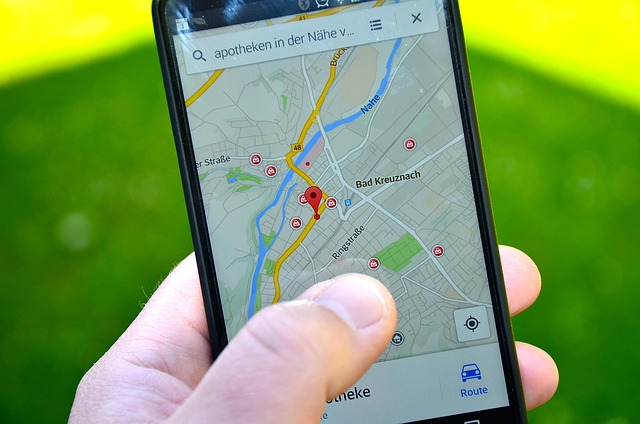
Modern Teslas collect and use location data for many functions: navigation, remote monitoring via the Tesla app, vehicle diagnostics, safety features, and more. However, there are valid privacy concerns that lead owners to ask: Can I disable or limit location tracking on my Tesla?
How To turn off location on Tesla, open Controls > Safety > Data Sharing from the touchscreen. Toggle off “Share Location Data” or “Location Services.” This stops Tesla from transmitting GPS information to its servers. However, disabling it may affect navigation accuracy, mobile app tracking, and certain Autopilot functions. You can re-enable location anytime if you want full connected features restored.
This article walks you step by step through how to turn off or restrict location access, what you’ll lose, and best practices to preserve your privacy while retaining essential functionality.
Why You Might Want to Turn Off Location Tracking?
Before proceeding, it’s worth understanding the reasons people disable location services in their Tesla:
- Privacy concerns: You may not want others (e.g. co-users of your app account) to monitor where your vehicle is at all times.
- Data sharing reduction: Tesla collects telematics, usage, diagnostics, and location data. Turning off access can limit what’s shared.
- Reduce app dependence / disable remote tracking: Some features in the mobile app become less useful if the car is off the grid.
- Situational use cases: In some cases, people want a “stealth mode” (e.g. temporarily hiding from app tracking) ﹘ though this comes with trade-offs.
However, it’s not usually possible to fully disable all location use without sacrificing many Tesla functionalities. In effect, you choose which features are worth giving up.
What “Turning Off Location” in Tesla Really Means?
Because Teslas rely on location data for core features, “turning off location” is less absolute than in a smartphone. Here’s what location control roughly entails:
- Disabling “Mobile Access” or remote connectivity
When you disable mobile access via the in-car settings, the vehicle stops communicating location data to the Tesla app or other external services. - Turning off data sharing options
Some Tesla settings let you opt out of telemetry, diagnostics, analytics, etc. But these are separate from GPS tracking. - App permissions on your phone
The Tesla mobile app itself may have permission settings (in iOS/Android) to deny location access. But denying app access doesn’t necessarily stop the car from tracking or transmitting its location.
In short, disabling mobile access is the primary lever that detaches location transmission from the external ecosystem.
Step-by-Step Guide: How to Turn Off Location Access in Your Tesla
Below is a structured, semantic guide to disabling or restricting location in your Tesla:
1. Prepare your Tesla and data
- Ensure your car is parked and powered on (or in a mode you can access its settings).
- Have your Tesla account credentials ready (email and password). Some settings changes require authentication.
2. Access the touchscreen controls
- On the central touchscreen, tap Controls (or Settings, depending on the UI).
- Then navigate to Safety & Security (or similarly named security/privacy section).
- Search for Allow Mobile Access (or a toggle for mobile connectivity).
3. Turn off “Allow Mobile Access”
- Toggle Allow Mobile Access to off.
- The car may prompt for your Tesla password to confirm.
- Once disabled, the car stops sending live location to the Tesla app or to third-party apps.
4. Review data sharing / analytics settings (optional)
- Still under settings, locate a Data Sharing (or Diagnostics & Data, Analytics) menu.
- Turn off or opt out of sharing diagnostic, telemetry, or analytics data if desired. This may not block location data but reduces other data flows.
5. Adjust your smartphone app permissions (optional)
- On your iOS or Android phone, find the Tesla app under Settings → Apps & Permissions.
- Set Location permission to Deny or While in Use, depending on your preference.
- Note: This does not guarantee the car won’t transmit location—only that the phone app may not request or show it.
6. Test whether location is disabled
- After turning off mobile access, open your Tesla app from another device/account and see if it shows the car’s location. If it can’t locate the car, that indicates success.
- Watch for the location icon on the car’s interface. Newer Tesla versions (2024.20 or later) display a location request icon along with which app is requesting it.
- You can also attempt to grant access via app or location-based features—if they no longer work, that’s another sign it’s disabled.
7. Re-enable when needed (if desired)
- If you later want remote control features (e.g. locking/unlocking via app, tracking, remote climate control), you’ll need to re-enable Allow Mobile Access.
- Re-enable diagnostic or analytics sharing as needed.
- Regrant app permissions on your phone.
Also Read: How To Short Tesla Stock – Ultimate Guide About 2025!
Limitations and Trade-offs: What You Lose by Turning Off Location
Disabling location access is not without costs. Here’s what you should expect:
- Loss of remote app features
With mobile access off, you can no longer use the Tesla app to lock/unlock, turn on climate control, locate your car, or view status remotely. - Navigation & routing limitations
Some advanced routing or predictive navigation features rely on consistent location data. These may degrade or turn off. - Reduced diagnostics & software services
Tesla may need location/time context for diagnostics or over-the-air updates; disabling these might complicate servicing or troubleshooting. - Loss of privacy features in emergencies
Some safety features or remote tracking (e.g. theft recovery) may no longer function well. - Detection by others
Disabling mobile access is visible: users of the app will see that access is off, and the Tesla interface may show that an app previously requested location but was blocked.
In other words, you trade convenience and connectivity for privacy.
Also Read: How Much Does It Cost To Wrap A Tesla Cybertruck – 2025 Guide!
Special Cases, Tips, and Extra Notes:
Tow Mode / Impound disablement:
In some Tesla models (e.g. Cybertruck), putting the vehicle in tow mode reportedly disables app connectivity, including location tracking.
That said, tow mode is not a regular way to manage location—it is meant for towing scenarios and may have risks or limitations.
App users and account sharing:
If multiple people have access via the Tesla app (e.g. family members), disabling mobile access blocks them all.
Some users ask: Can I disable location for one user but not another? The consensus: no. It’s a global toggle on the car.
Future Tesla software updates:
Software updates in newer Tesla firmware (from 2024.20 onward) add more privacy transparency. Tesla now shows which app is requesting location and lets users disable mobile access in the same menu as before.
Also, Tesla continues to refine its privacy controls and data policies, meaning the exact UI may shift over time. So always check your software version and consult the in-car interface.
Privacy in other senses:
Location is only one aspect of what Tesla gathers. Cameras, sensor data, driver input, diagnostics, and usage behavior may also be collected. Tesla gives options to disable some of this, but often with diminished functionality.
Best Practices & Precautions:
- Backup credentials and settings
Because you’ll need your Tesla account password to confirm changes, keep that secure and known. - Test after toggle
After disabling mobile access, test via another device/app to confirm the location is indeed no longer visible. - Know when to re-enable
If you visit a service center, Tesla staff might require location/data access temporarily to assist or service your vehicle. - Stay updated
After software updates, recheck these toggles because Tesla sometimes resets or changes privacy settings. - Balance privacy and usability
Decide which features you truly need (remote control, navigation optimization) vs. which you can live without.
How do I turn off location sharing on my Tesla?
To turn off location sharing, go to Controls > Safety > Data Sharing on your Tesla’s touchscreen. Toggle off the options related to “Location Data” or “Analytics.”
This prevents Tesla from sending precise location information to its servers. Keep in mind that disabling this feature may limit navigation accuracy and certain connected features that rely on real-time vehicle data.
How do I turn off vehicle location on Tesla?
You can disable vehicle location by navigating to Controls > Safety > Data Sharing and turning off “Share Location Data.” This stops Tesla from transmitting your car’s GPS position.
However, some features like navigation routing, Supercharger trip planning, and app-based tracking may no longer work correctly. Always ensure you understand which services are affected before disabling location sharing.
Can the Tesla user turn off location?
Yes, Tesla owners can turn off location sharing through Settings > Safety > Data Sharing on the vehicle’s display. Toggle off the “Location” option to stop Tesla from transmitting GPS data to servers.
This restricts features like trip recording, navigation history, and remote tracking in the app. It’s useful for privacy, but may limit certain connected or Autopilot-related functionalities that depend on GPS information.
How do I turn off location tracking services?
To disable location tracking services in your Tesla, open Controls > Safety > Data Sharing and switch off “Location Sharing” or “Telemetry.” This prevents Tesla from storing or transmitting your driving routes and GPS data.
Keep in mind that turning off tracking can affect mobile app features, navigation updates, and real-time vehicle monitoring. You can re-enable it anytime for normal functionality.
How to turn off location services on your Tesla Model 3?
On your Tesla Model 3, go to Controls > Safety > Data Sharing from the touchscreen. Turn off the “Location Data” option. This stops Tesla from sharing GPS information with its servers.
Note that disabling this setting can reduce navigation accuracy and remote monitoring features within the Tesla app. If you want full functionality back, you can easily re-enable location services later.
How to turn off location on Tesla Model Y?
To disable location on a Tesla Model Y, access Controls > Safety > Data Sharing and toggle off “Share Location Data.” This limits Tesla’s ability to access your car’s GPS position.
While it enhances privacy, it may impact map navigation, Smart Summon, and app-based tracking. You can restore normal functionality anytime by reactivating the location-sharing feature through the same menu.
How to turn off location on Tesla Model 3?
Open Controls > Safety > Data Sharing on your Model 3’s touchscreen and turn off “Location Data.” This prevents Tesla from sending GPS information for analytics or diagnostics.
Keep in mind, however, that turning off location services may limit features like live tracking in the Tesla app or route optimization. You can always re-enable it later when you need full connectivity.
How to turn off Tesla app?
To turn off the Tesla app, log out by tapping your profile icon and selecting Sign Out. You can also disable mobile access in your vehicle via Controls > Safety > Mobile Access.
This stops remote functions like location tracking, unlocking, and charging control. To conserve privacy or battery life, you can simply close the app or restrict background activity on your phone.
How to turn on Tesla location services?
To enable Tesla’s location services, go to Controls > Safety > Data Sharing and toggle on “Share Location Data.” This allows your car to send GPS data for navigation, trip tracking, and app-based features like locating your vehicle or Smart Summon.
Enabling this also improves route accuracy and safety features, ensuring your Tesla operates with full real-time functionality and connectivity support.
Disable Mobile Access Tesla?
To disable mobile access on your Tesla, open Controls > Safety > Mobile Access on the touchscreen and toggle it off. Once disabled, your Tesla app will no longer communicate with the car, meaning you can’t track, unlock, or control it remotely. This is useful for added privacy or when leaving your car with valet services or third parties.
How to track Tesla location?
You can track your Tesla’s location using the Tesla mobile app. Open the app, select your vehicle, and tap the location pin icon to view its real-time GPS position on the map. This feature requires “Mobile Access” and “Location Sharing” to be enabled.
It’s useful for monitoring trips, checking parking spots, or ensuring vehicle security from anywhere using your smartphone.
Conclusion:
Turning off location tracking on your Tesla is not a one-click “off forever” switch, but rather a trade-off. By disabling Allow Mobile Access in the car’s Safety & Security settings and adjusting data sharing options, you decouple your vehicle from external location tracking. On the flip side, you sacrifice many conveniences and remote features offered by the Tesla app.
Always weigh the privacy benefits against functionality losses, test after making changes, and stay alert when Tesla updates its software. If privacy is a top priority for you, these steps give you a greater control over where your Tesla’s data goes.
FAQs:
1. Can I completely turn off GPS tracking on my Tesla?
No, you can’t fully disable GPS since Tesla uses it for navigation, Autopilot, and updates. However, turning off Allow Mobile Access stops your car’s live location from appearing in the Tesla app or being shared remotely. This gives partial privacy while keeping essential driving functions active.
2. How do I stop the Tesla app from showing my car’s location?
Open your Tesla touchscreen, go to Controls → Safety & Security, and toggle Allow Mobile Access to off. This stops the Tesla app and linked accounts from viewing your vehicle’s real-time location or status. You can easily re-enable it anytime if you want to restore remote control and monitoring features.
3. Will disabling mobile access affect my Tesla’s features?
Yes. Disabling Allow Mobile Access turns off remote controls like lock/unlock, climate preconditioning, Summon, and GPS tracking through the Tesla app. You’ll also lose location-based alerts or theft tracking. These features only return after re-enabling mobile access, so weigh convenience against privacy before making the change.
4. Does Tesla still collect data after I turn off location sharing?
Even with mobile access disabled, Tesla may still collect diagnostic and safety data internally. You can reduce this by turning off Data Sharing in Controls → Safety. This limits Tesla’s access to driving behavior and performance analytics but might affect service accuracy or future software updates.
5. Can I hide my Tesla’s location from other app users without turning off all mobile access?
No. The Allow Mobile Access toggle applies to the entire vehicle, not individual users. If multiple people share your Tesla app account, turning it off hides the car’s location from everyone. Tesla currently doesn’t offer per-user location privacy settings within the app or vehicle system.
Jerry Smith brings a decade of hands-on experience at Tesla, specializing in electric vehicle engineering, battery systems, and market analysis. As both an automotive practitioner and passionate investor, he blends technical insight with stock-market savvy to demystify Tesla’s innovations and financial narrative.
Related Posts