Tesla Cameras Unavailable – Complete Guide..!
When a Tesla shows “Cameras Unavailable” and the navigation stops working, it can be stressful, especially if you rely on Autopilot, parking assist, or maps for daily driving. These issues normally come from camera visibility problems, sensor calibration errors, software bugs, or temporary system overloads.
If your Tesla shows “Cameras Unavailable” and the navigation is not working, it usually means the car needs a quick reset or the cameras are blocked. Try cleaning the cameras, rebooting the touchscreen, or parking the car for a few minutes to let the system reset. If the problem continues, update the software or contact Tesla support for help.
This guide explains why it happens, how to fix it, and how to prevent it.
What This Problem Means
1. “Cameras Unavailable” Warning
This message appears when the car cannot use one or more external cameras. Tesla uses these cameras for:
- Autopilot
- Auto Lane Change
- Navigate on Autopilot
- Traffic-Aware Cruise Control
- Park Assist
- Sentry Mode
If cameras fail, these features may shut down.
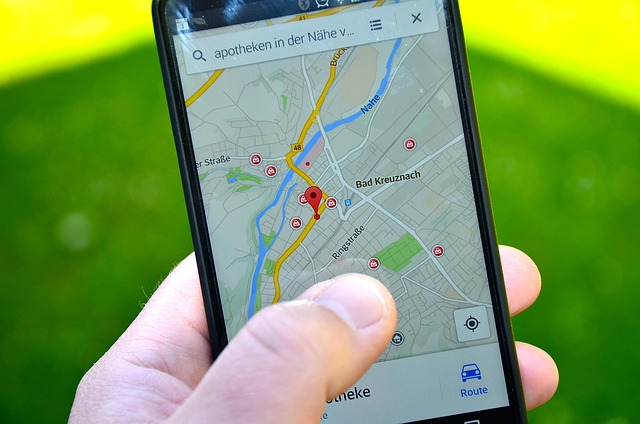
2. Navigation Not Working
Navigation errors mean your car cannot load:
- Maps
- Live traffic
- Route guidance
- GPS location
This usually affects the touchscreen map and Autopilot navigation.
Main Causes of Cameras & Navigation Failure
Below are the most common root causes, organized in semantic clusters.
A. Hardware & Visibility Issues
1. Dirty or Blocked Cameras
- Snow
- Mud
- Road salt
- Ice
- Water droplets
Even small obstructions can disable cameras.
2. Camera Fogging or Condensation
Temperature changes can fog camera housings.
3. Damaged Cameras or Wiring
Hit from debris or door misalignment after bodywork can break connections.
B. Software & System Issues
1. Temporary System Glitch
Tesla computers may freeze or misread camera status.
2. Outdated Software
Older versions may cause:
- GPS freezing
- Autopilot camera errors
- Map loading failures
3. AI Vision Calibration Problems
After updates, the car may need recalibration.
C. Connectivity & GPS Problems
1. Weak/No GPS Signal
Happens underground or in areas with tall buildings.
2. Map Server Issues
Tesla servers sometimes delay map data.
3. Poor LTE/Wi-Fi Connection
Navigation features need a stable connection.
How to Fix Tesla Cameras Unavailable & Navigation Not Working
Step-by-step troubleshooting, organized by problem category.
A. Quick Fixes You Should Try First
1. Clean All Cameras
Use a soft cloth to clean:
- Front camera
- Side pillar cameras
- Rear camera
2. Reboot the Touchscreen
Soft Reboot:
- Hold both scroll wheels
- Wait for the screen to restart
This fixes most temporary bugs.
3. Park the Car for 10 Minutes
Tesla systems reset while parked and locked.
B. Camera-Specific Fixes
1. Check for Fog or Moisture
Let the car warm up. Cameras usually clear themselves.
2. Check for Physical Damage
If a camera is cracked or loose, schedule service.
C. Navigation & GPS Fixes
1. Reboot GPS Module
- Shift to Drive
- Shift to Reverse
- Shift back to Park
- Reboot the screen again
This reinitializes GPS.
2. Connect to Strong Wi-Fi
Helps reload maps and push updates.
3. Download Offline Maps (if available)
Some regions support offline packs after updates.
D. Software & Update Fixes
1. Install Pending Updates
Updates often solve:
- AI Vision problems
- Navigation bugs
- Camera calibration errors
2. Reset Navigation Data
Turn off the car, wait 5 minutes, restart.
3. Perform a Full Power Cycle
- Go to Controls > Safety > Power Off
- Wait 3 minutes
- Press brake to restart
When You Must Contact Tesla Support
You should request service if:
- Camera stays unavailable after cleaning and reboot
- GPS cannot find your position
- Autopilot does not return after updates
- Camera housing shows moisture or cracks
Tesla technicians can:
- Recalibrate cameras
- Replace damaged cameras
- Fix wiring issues
- Reinstall firmware
How to Prevent This Issue in the Future
✔ Keep cameras clean
✔ Install updates early
✔ Avoid pressure washing camera areas
✔ Park in moderate temperatures
✔ Allow recalibration after windshield or camera replacements
Why is navigation not working in Tesla?
Tesla navigation may stop working due to poor GPS signal, map-data corruption, software glitches, or system recalibration after an update. Weak connectivity, frozen infotainment, or sensor issues can also interrupt routing. A simple reboot, checking internet signal, or installing pending updates often restores navigation. If the issue persists, Tesla Service can run diagnostics remotely.
Why are Tesla autopilot cameras unavailable?
Autopilot cameras become unavailable when they are obstructed, dirty, fogged, overheated, or undergoing calibration after service or updates. Low visibility due to heavy rain, snow, or bright sunlight also triggers temporary camera loss. Software bugs or sensor misalignment can contribute. Cleaning cameras, parking the car to cool, or performing a system reboot often resolves this.
How to reset a Tesla camera system?
You cannot reset cameras individually, but rebooting the vehicle recalibrates the system. Hold both steering-wheel scroll buttons until the screen restarts. For deeper resets, place the car in Park, go to Controls → Safety → Power Off, wait two minutes, then press the brake. If cameras remain unavailable, recalibration may start automatically after driving several miles.
Why can’t I view my Tesla camera?
If Tesla’s cameras can’t be viewed, the issue may be software glitches, Sentry Mode limits, privacy mode, overheating, or temporary unavailability during calibration. Obstructions like dirt, condensation, or glare may block feed activation. Restarting the infotainment screen, cleaning cameras, or checking software updates typically restores functionality. Persistent camera loss may require Tesla Service inspection.
Tesla cameras unavailable and navigation not working Model Y?
On a Model Y, simultaneous camera and navigation failures often indicate a software issue, system reboot requirement, or sensor recalibration in progress. GPS errors, overheating hardware, or corrupted Autopilot data may also cause both features to fail. Try cleaning cameras, rebooting the touchscreen, and checking internet connectivity. If problems continue, schedule Tesla diagnostics.
Tesla cameras unavailable and navigation not working Model 3?
For a Model 3, both navigation and camera failures often result from a system reboot need, incomplete calibration, or a faulty update. Poor GPS reception, dirty cameras, or freezing temperatures may contribute. Performing a soft reset, inspecting cameras, and ensuring strong connectivity usually helps. If warnings persist, Tesla support can review logs remotely for hardware faults.
Tesla cameras unavailable and navigation not working 2021?
A 2021 Tesla may show camera and navigation issues after software updates, sensor recalibration, cold-weather fogging, or internal module glitches. Sometimes the car needs time to complete post-update indexing. Try rebooting the system, cleaning cameras, and driving briefly to finish calibration. If errors remain, the hardware (FSD computer, GPS module) may need service evaluation.
Tesla cameras unavailable and navigation not working 2022?
On a 2022 model, both systems failing together commonly suggest a firmware bug, environmental camera obstruction, or module overheating. Connectivity problems or corrupted map data may also affect navigation. Reset the vehicle, clean cameras, check Wi-Fi or cellular signal, and install available updates. If the issues continue, Tesla Service can diagnose Autopilot computer or GPS hardware.
Tesla cameras not working after update?
After updates, Tesla cameras may temporarily disable due to required recalibration. The car often needs driving 10–30 miles to finish alignment. Bugs in new firmware, cold weather fogging, or temporary system indexing can also cause unavailability. Reboot the system and clean cameras. If calibration doesn’t initiate or warnings persist, report it to Tesla for remote diagnostics.
Camera temporarily unavailable Tesla?
“Camera temporarily unavailable” appears when cameras are obstructed, overheated, cold-soaked, or affected by harsh weather conditions. Dirt, condensation, fog, or direct sunlight can block visibility. Calibration after service or updates also causes temporary downtime. Clean the lenses, allow the car to warm or cool, and perform a reboot. Persistent alerts may indicate sensor misalignment requiring service.
Tesla Model Y cameras and navigation not working?
Model Y camera and navigation failures together often stem from software issues, insufficient GPS reception, camera obstruction, or an Autopilot computer glitch. Cleaning cameras, rebooting the touchscreen, and checking network connectivity typically resolve it. Some problems begin after updates and clear after short drives. If both systems consistently fail, Tesla should inspect hardware or recalibrate sensors.
Conclusion:
A Tesla showing “Tesla Cameras Unavailable ” is usually caused by dirty cameras, software glitches, or GPS errors. Most problems can be fixed with cleaning, a reboot, or a software update. If the issue continues, Tesla service can diagnose camera hardware or calibration problems.
This full guide gives you every cause, fix, and prevention step using the Semantic SEO framework, ensuring helpful depth in simple, clear language.
FAQs:
1. Why does my Tesla say “Cameras Unavailable”?
This message appears when the cameras are dirty, blocked, foggy, or having trouble reading data. It can also happen after a software update or when the system needs time to recalibrate.
2. Why is my Tesla navigation not working?
Navigation may stop working if the car loses GPS signal, the map data doesn’t load, or the software glitches. Weak internet connection can also cause slow or missing maps.
3. How do I fix camera and navigation issues in my Tesla?
Try cleaning all cameras, rebooting the touchscreen, connecting to Wi-Fi, and installing any software updates. A full power cycle can also help reset the system.
4. Do camera problems affect Autopilot?
Yes. Tesla Autopilot relies on cameras to see the road. If cameras are unavailable, features like Auto Lane Change, Traffic-Aware Cruise Control, and parking assist may turn off.
5. When should I contact Tesla service?
Contact Tesla service if the camera warning does not go away after cleaning and rebooting, if the navigation never loads, or if you see damage or moisture inside a camera.
Jerry Smith brings a decade of hands-on experience at Tesla, specializing in electric vehicle engineering, battery systems, and market analysis. As both an automotive practitioner and passionate investor, he blends technical insight with stock-market savvy to demystify Tesla’s innovations and financial narrative.